
HappyHorse 1.0 AI Video Generator
Use HappyHorse 1.0 in FlashEdit to generate short AI videos from prompts, with optional first-frame images or up to 9 reference images, plus 720p and 1080p output.
MODEL OUTPUTS
See what HappyHorse 1.0 can turn into motion
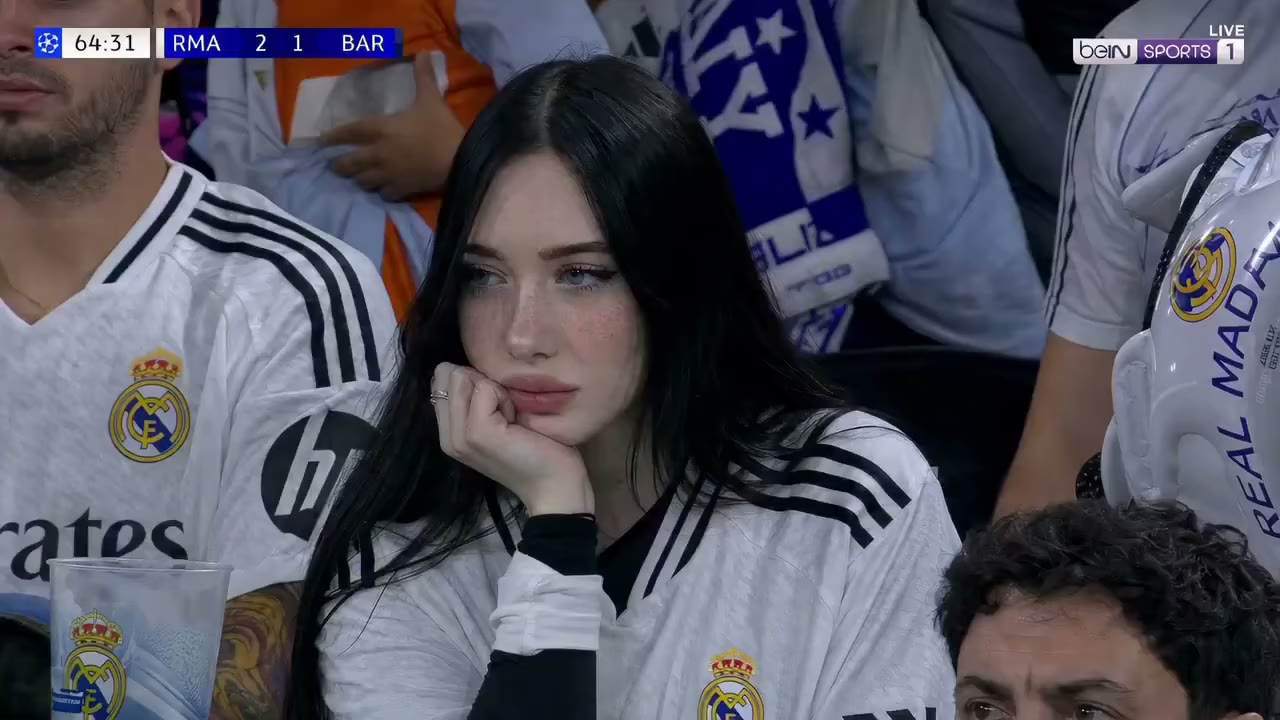
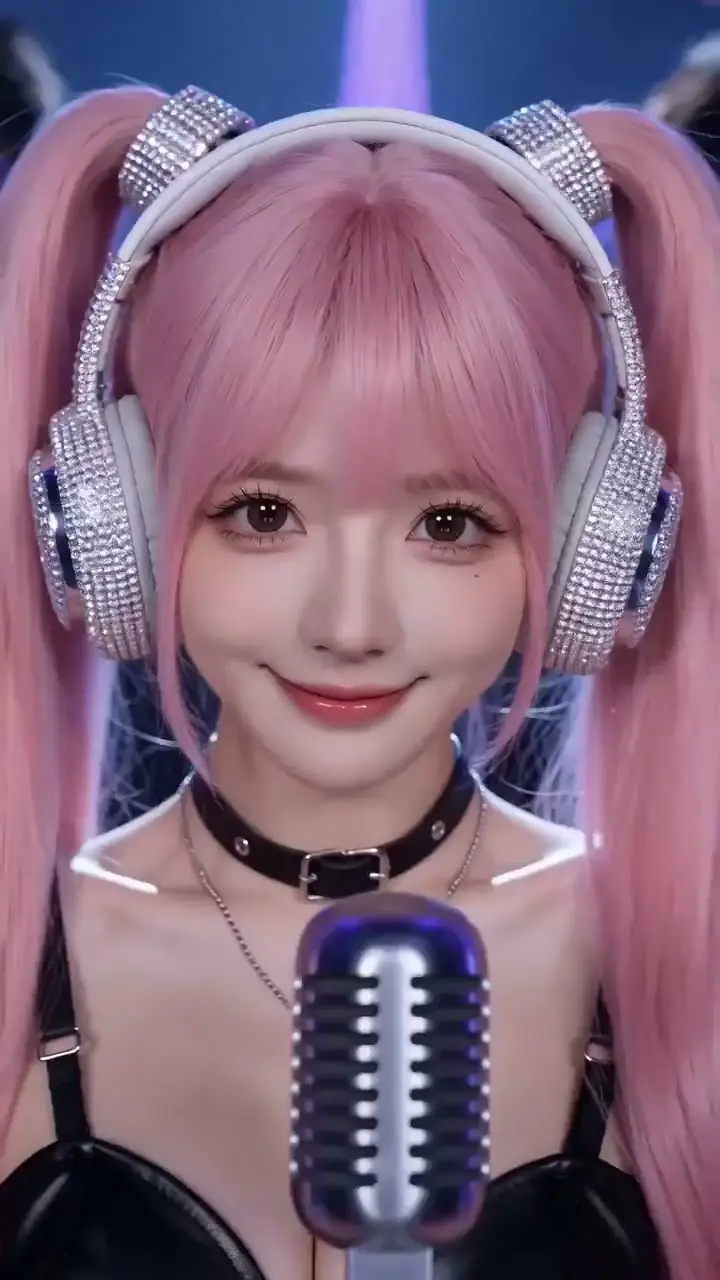
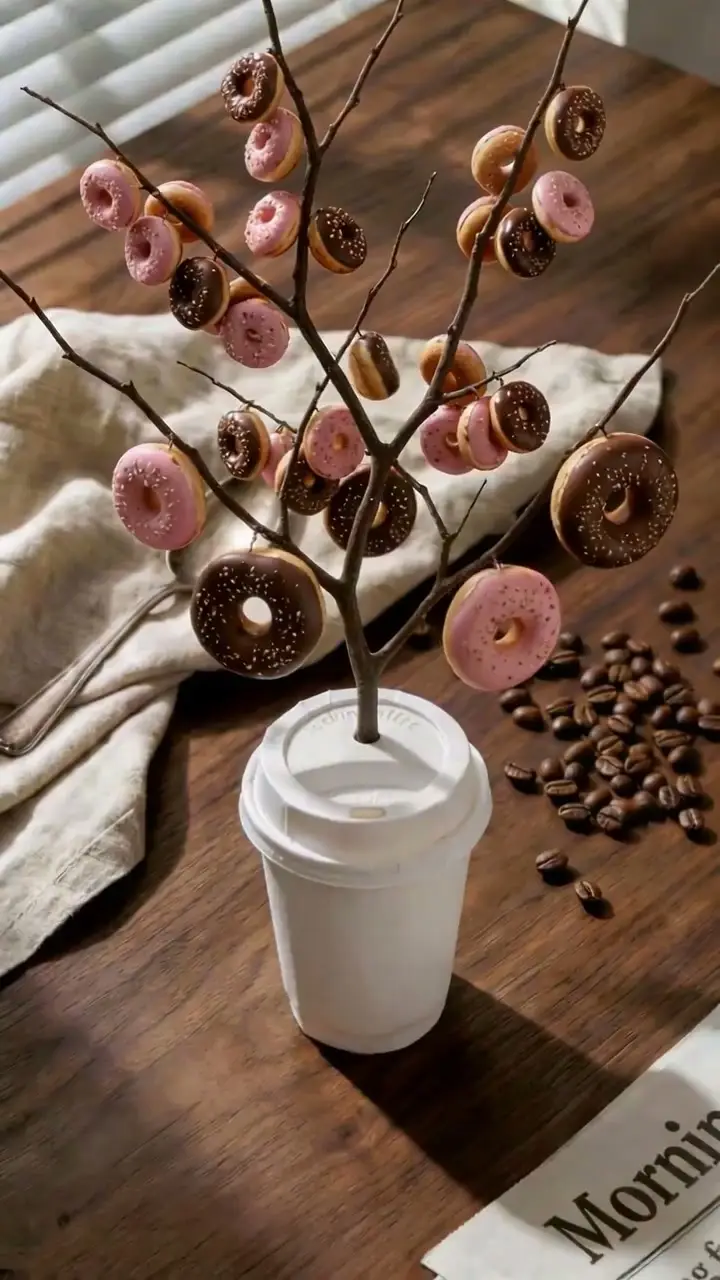
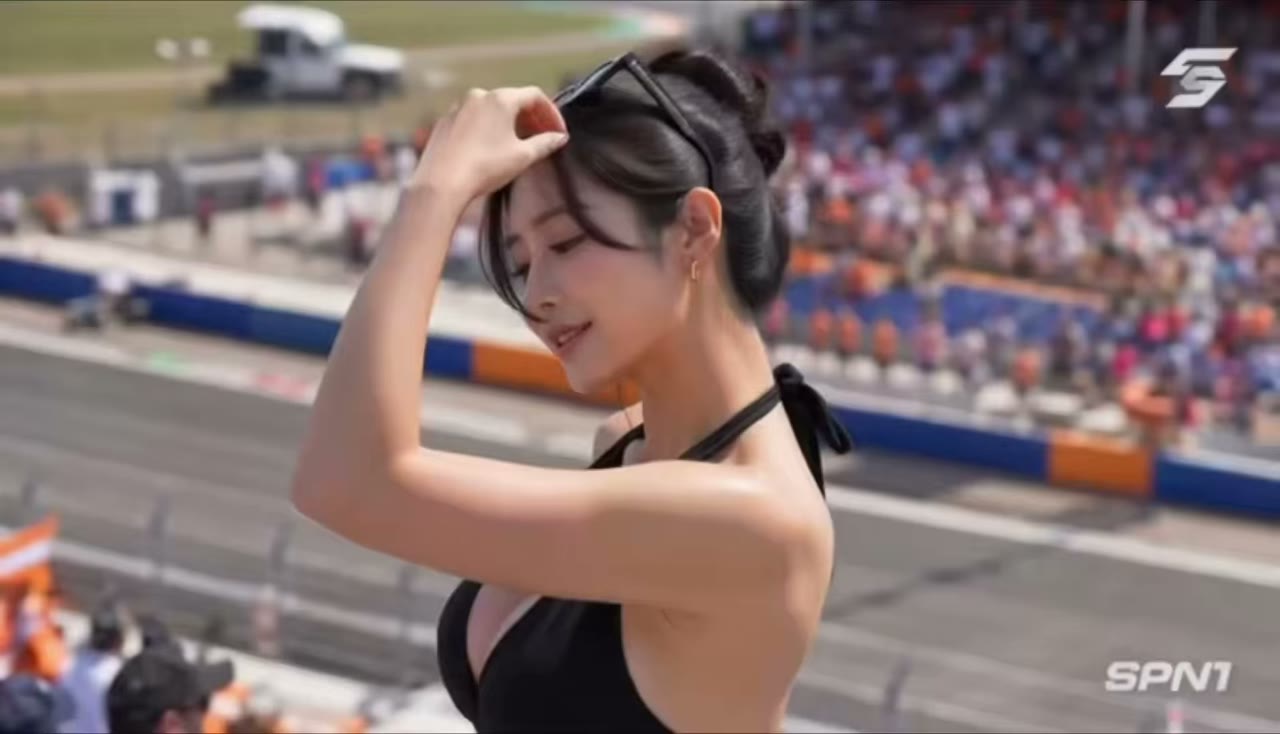
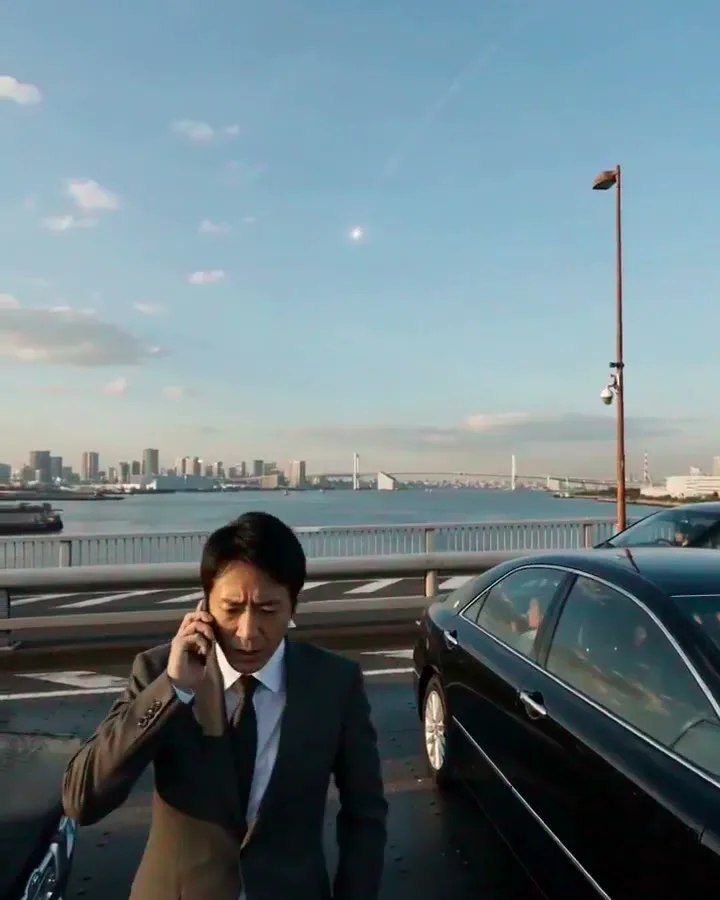
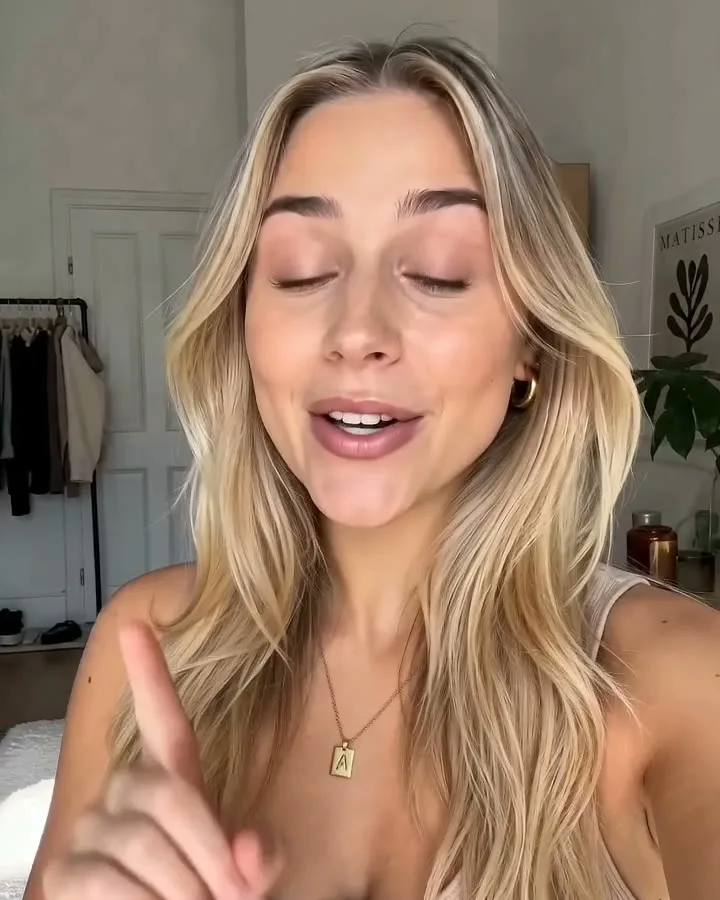
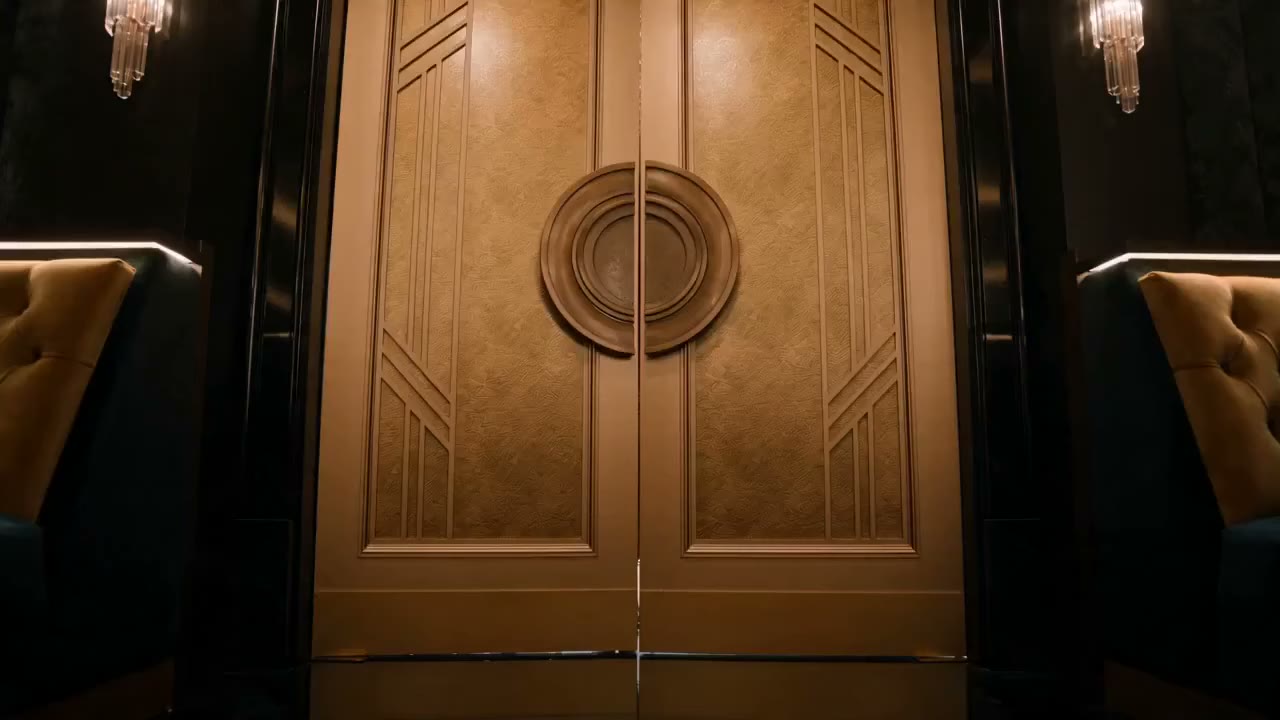
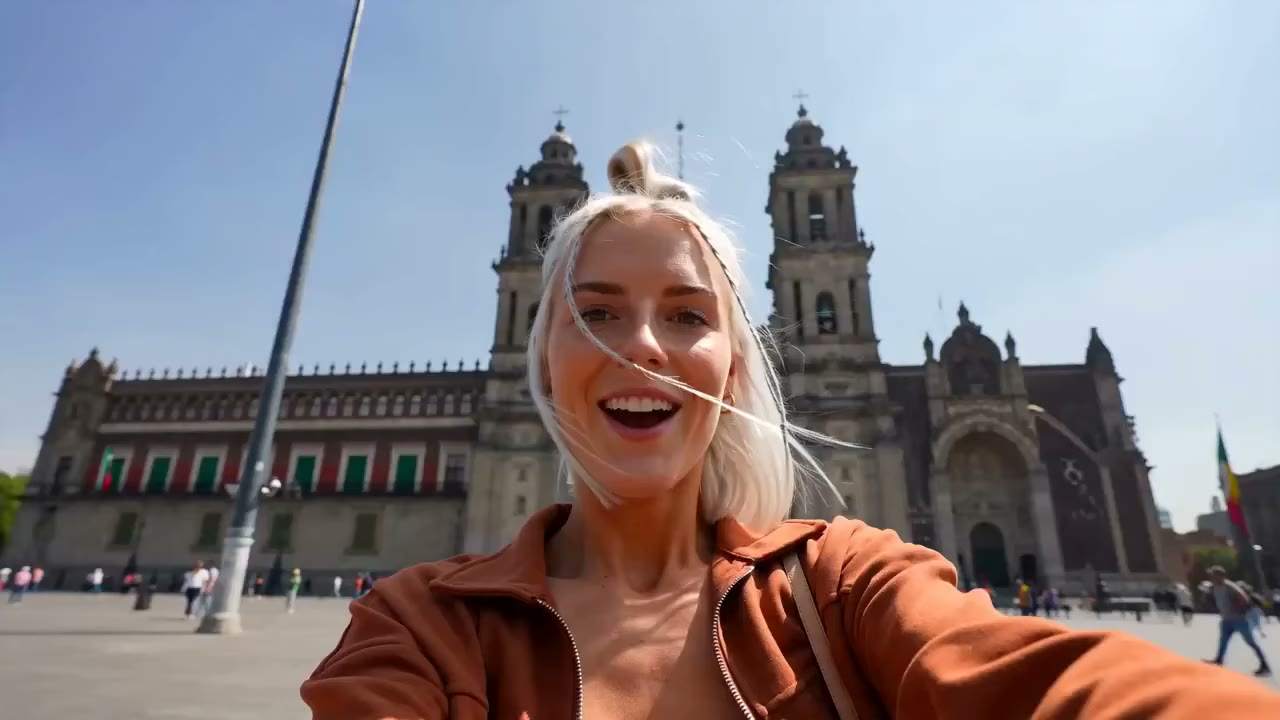
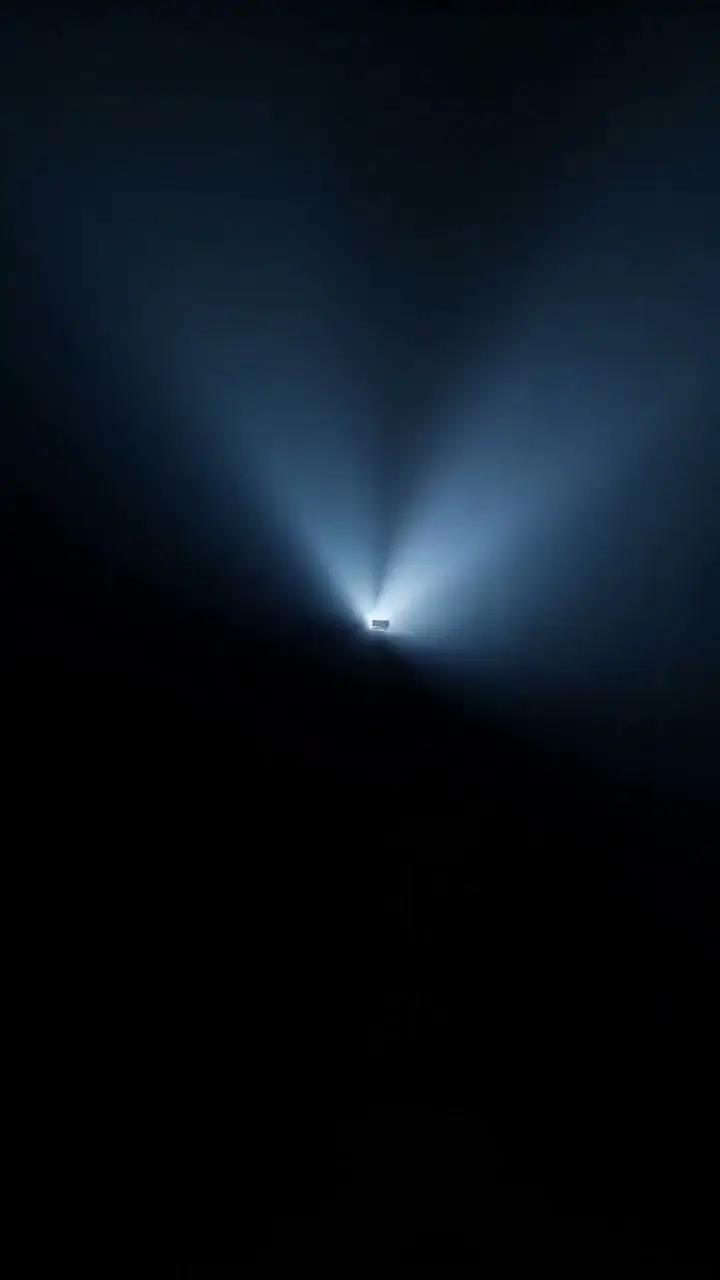
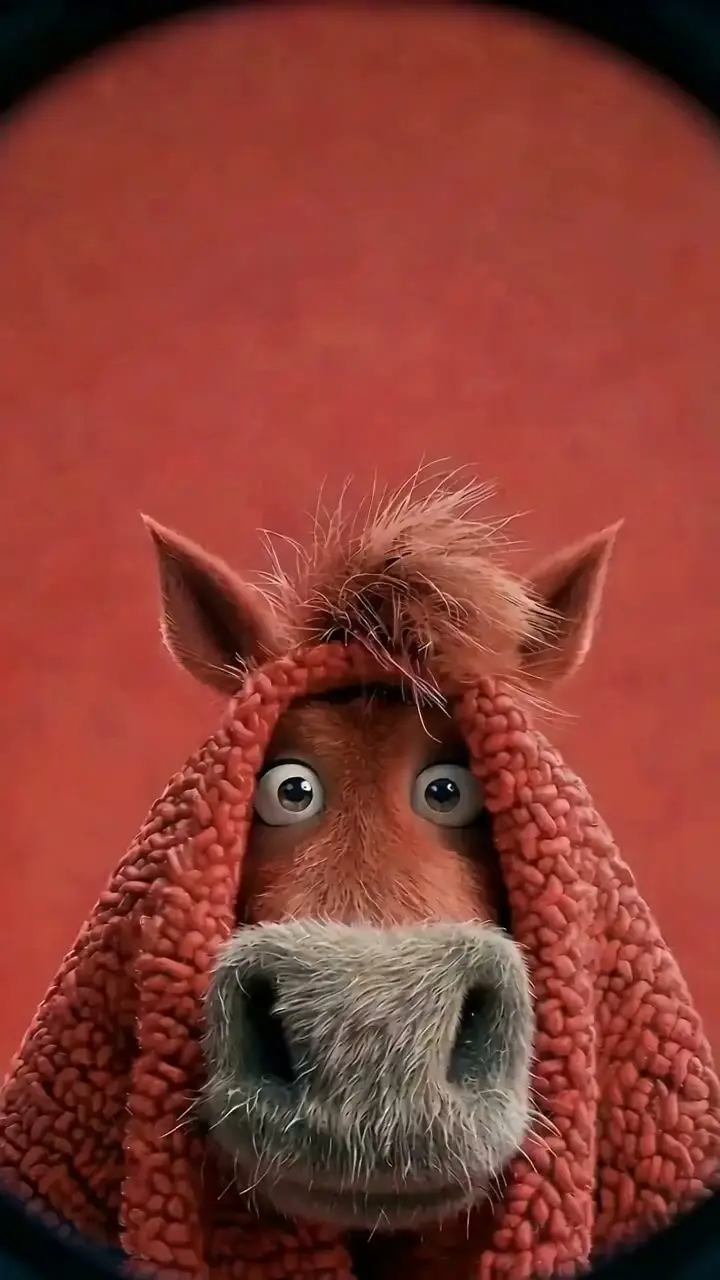
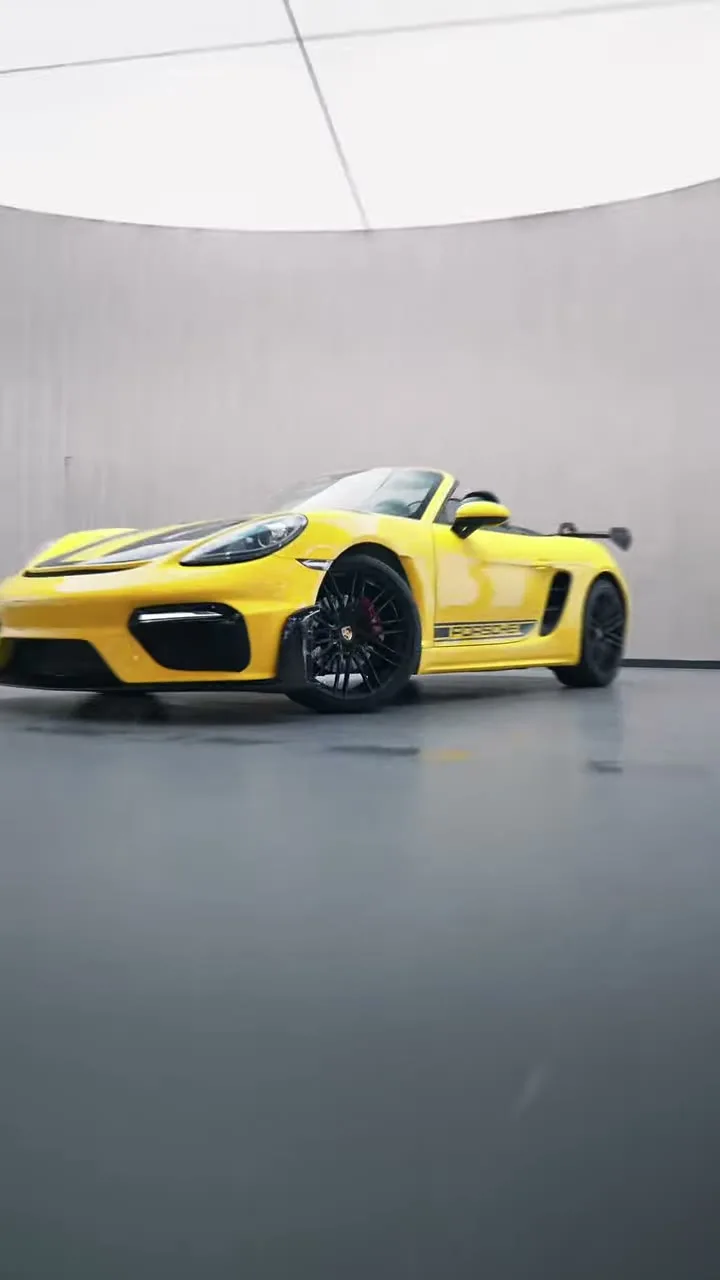
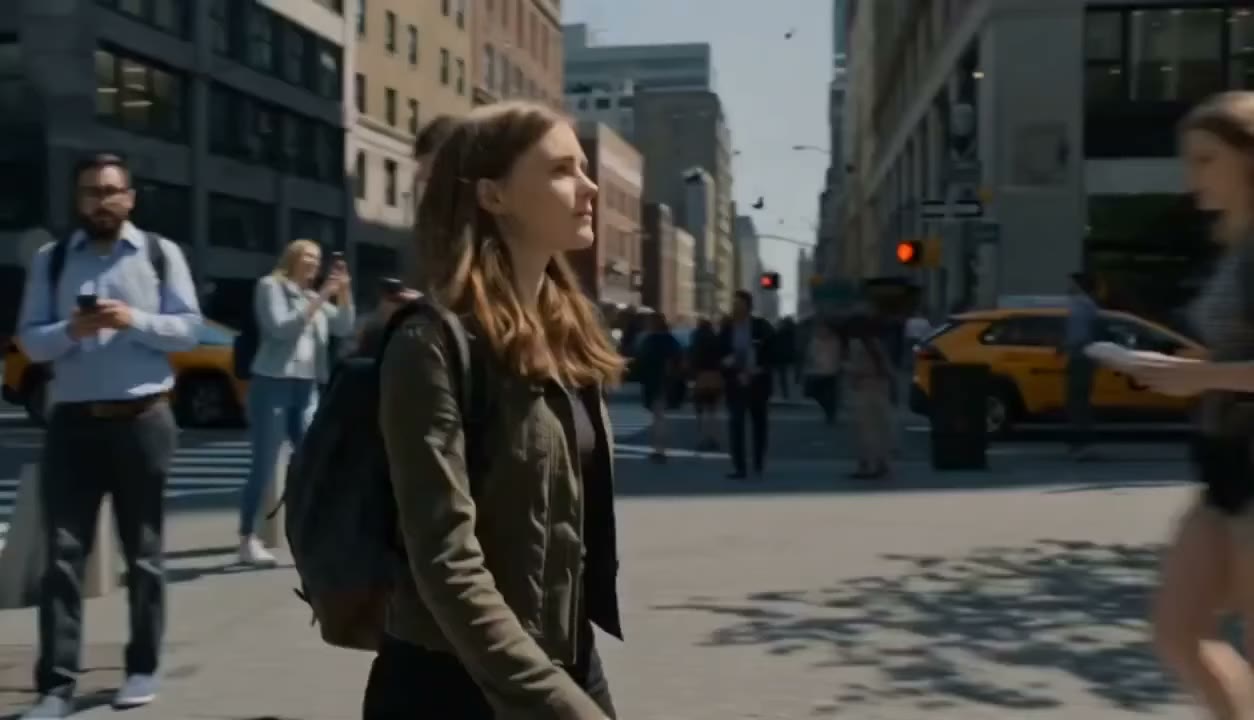
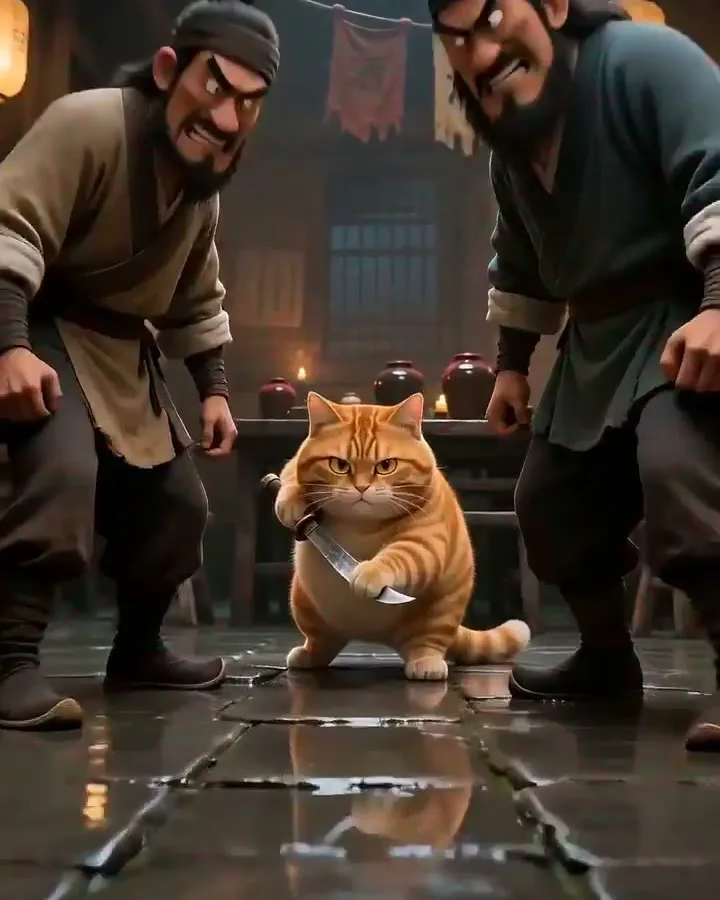
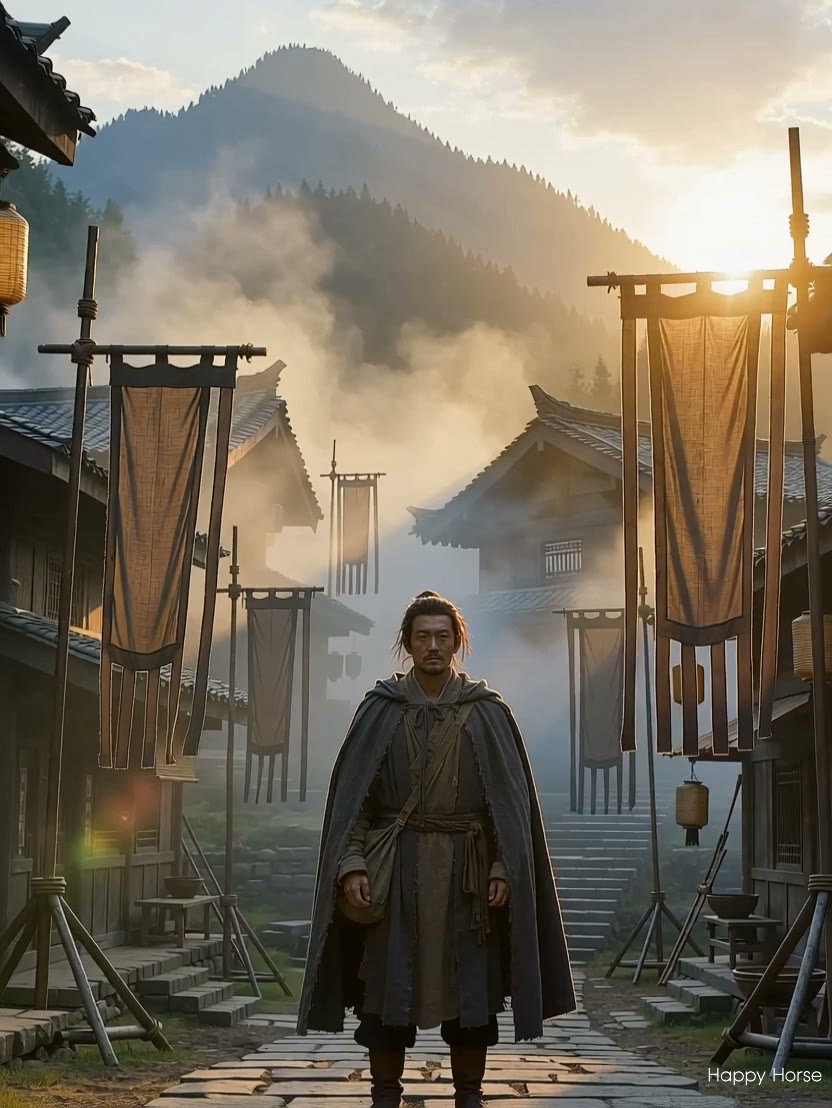
Explore output directions for product shots, social clips, character motion, ad concepts, and cinematic scenes you can start from text or image references.
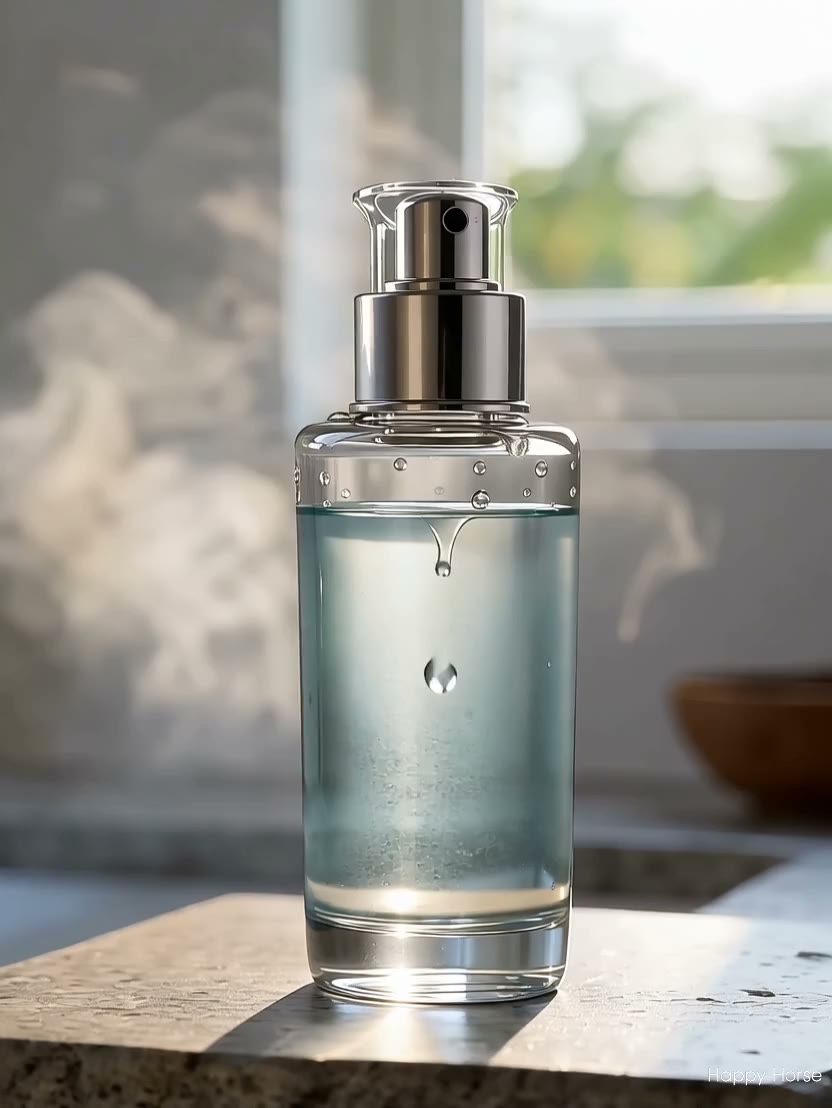
Product Motion
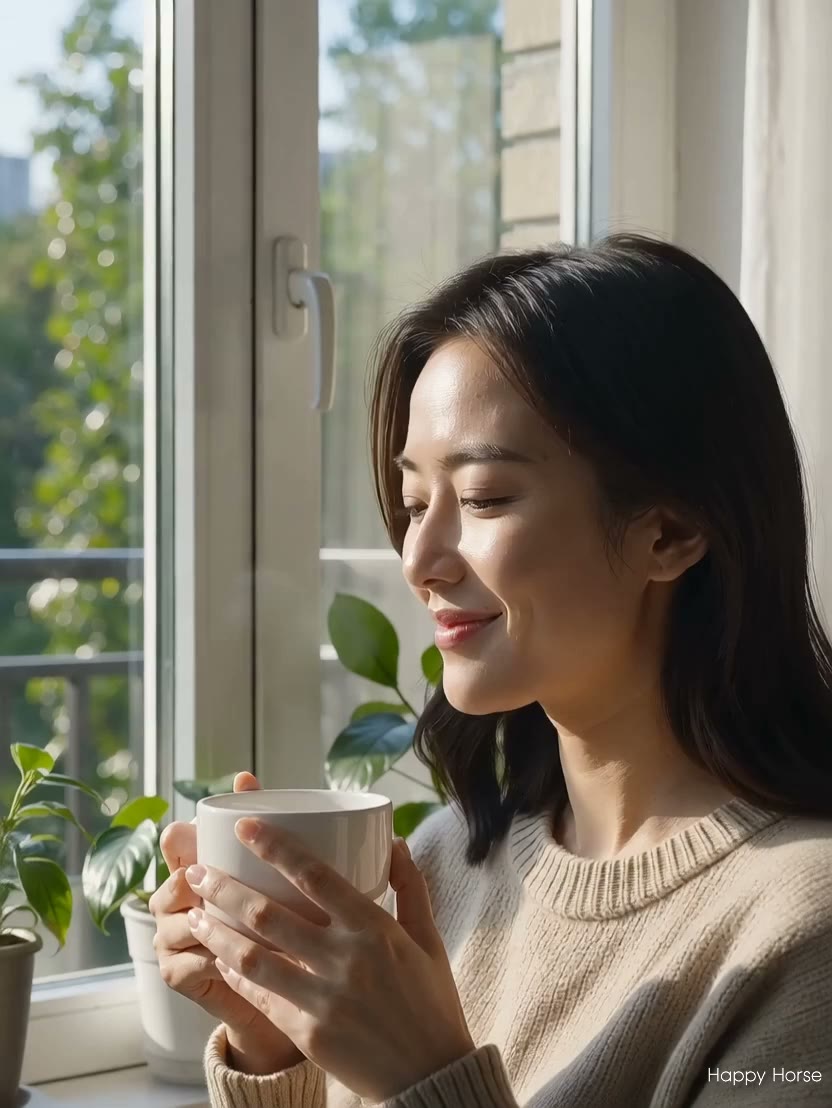
Product Ad Concept
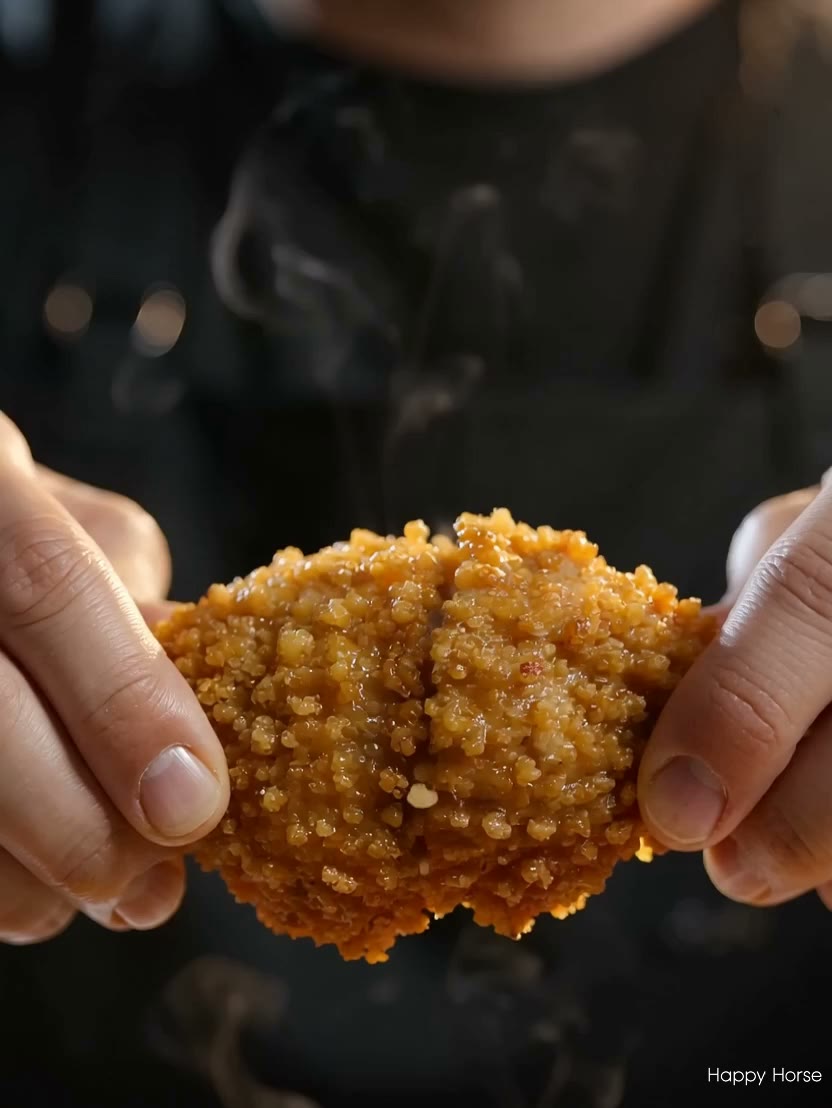
Ad-Ready Short Clip
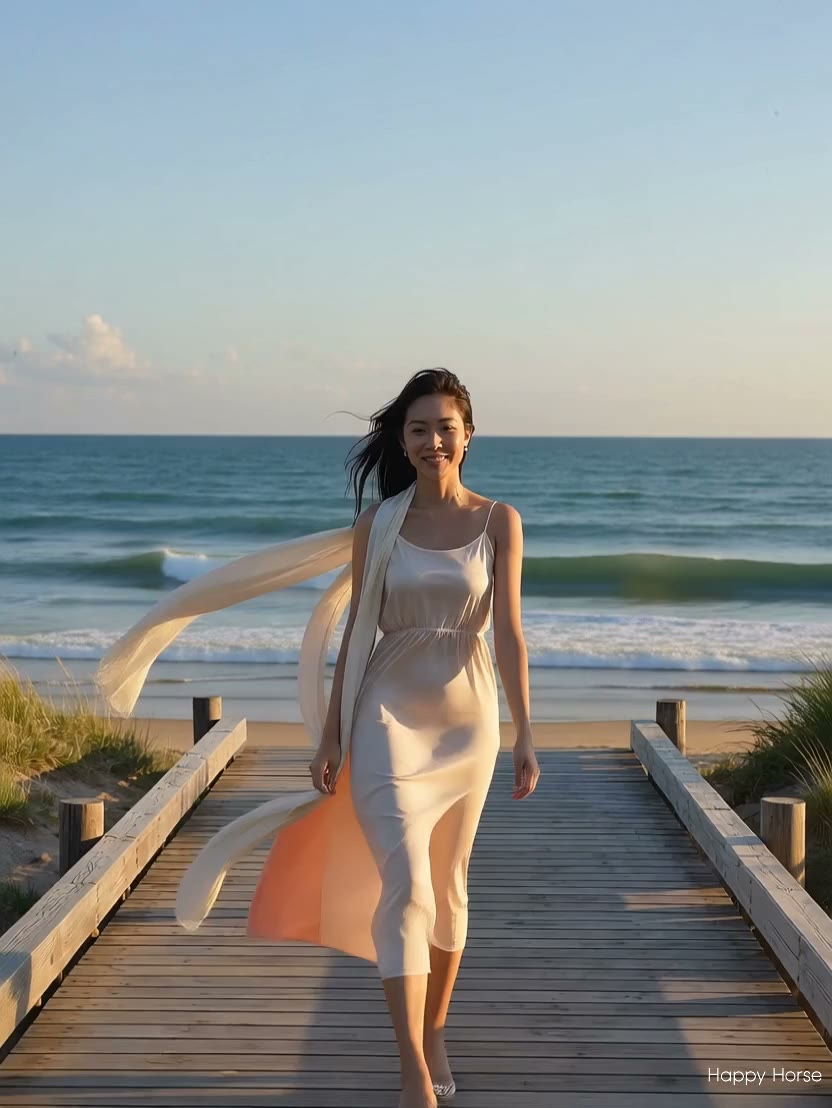
Social Video Shot
Reference Image Story
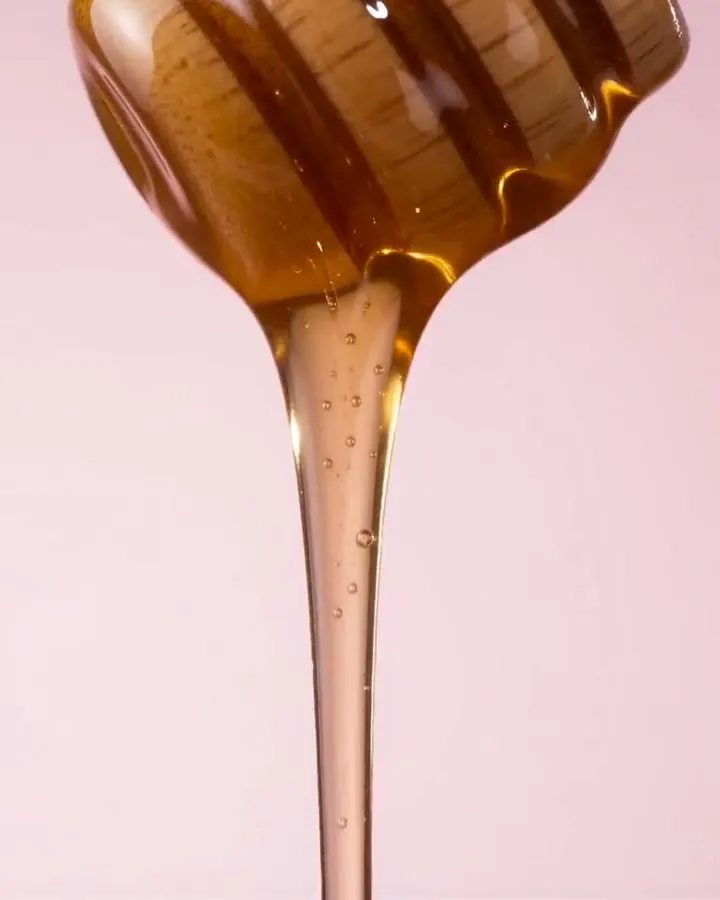
Character Motion Test
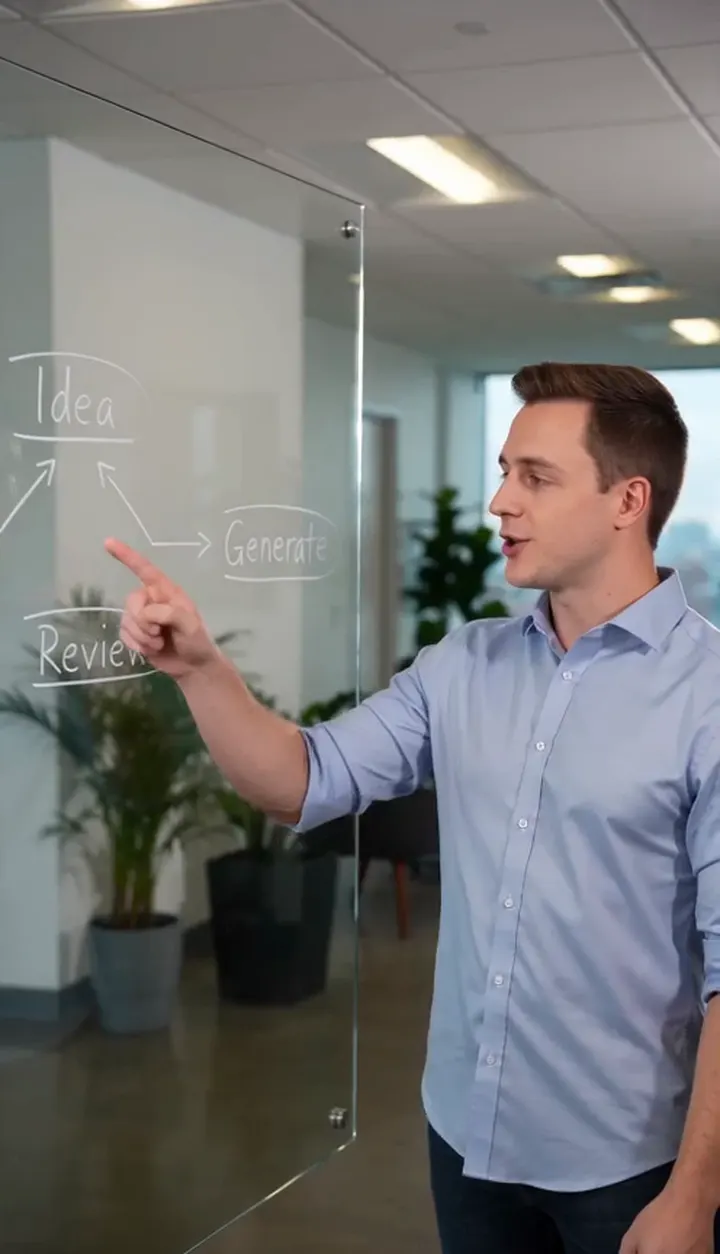
Vertical Social Draft
Brand Campaign Clip
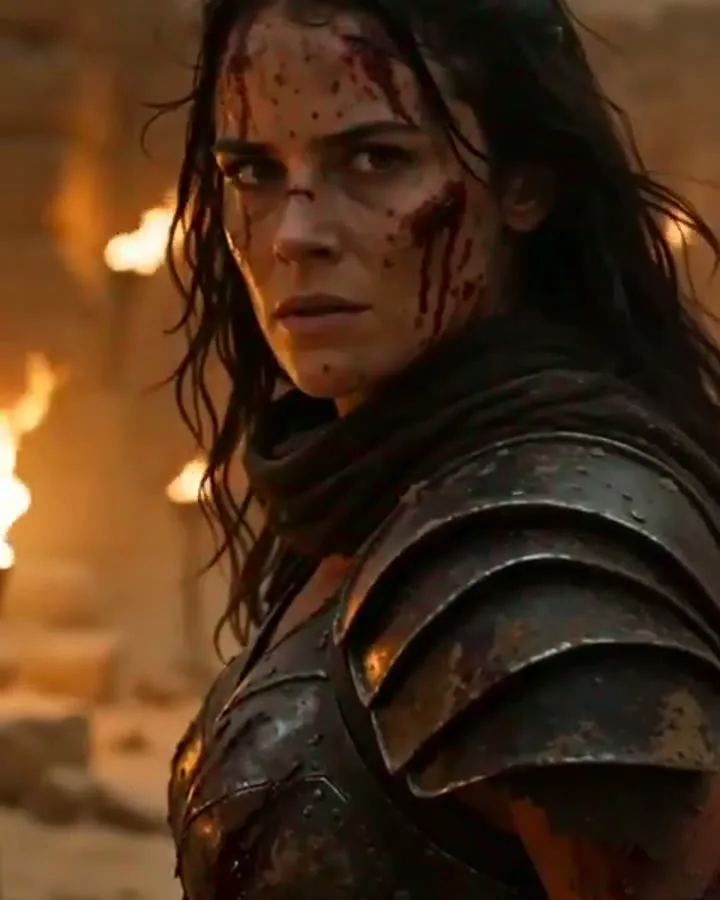
Short Film Concept
HOW IT WORKS
How HappyHorse 1.0 generation works
Start with text, a first-frame image, or reference images, then choose output settings and let FlashEdit track the HappyHorse 1.0 task for you.
1
Choose the input mode
Start from a prompt, one first-frame image, or multiple references when you need stronger visual guidance.
2
Write motion instructions
Describe the subject, camera movement, action, mood, and anything that should stay visually stable.
3
Choose output settings
Pick 720p or 1080p, set the aspect ratio, and choose a 3-15 second duration.
4
Generate and track
FlashEdit submits the generation, tracks the result, and returns the completed video to your generation history.
CORE CAPABILITIES
Why HappyHorse 1.0 deserves a dedicated page
HappyHorse 1.0 combines a strong public quality signal with practical FlashEdit controls for prompt, first-frame, and reference-image video generation.
Strong public quality signal
HappyHorse 1.0 drew attention after ranking near the top of public blind-preference AI video leaderboards, especially for text-to-video and image-to-video without audio. That does not make it the best choice for every project, but it is a strong reason to test it when visual quality, motion, and image-guided generation matter.

Reference-guided visual consistency
HappyHorse 1.0 is especially useful when a product, character, location, or art direction needs to stay close to source material. Use first-frame or multi-reference input to give the model more visual context than a prompt can provide on its own.
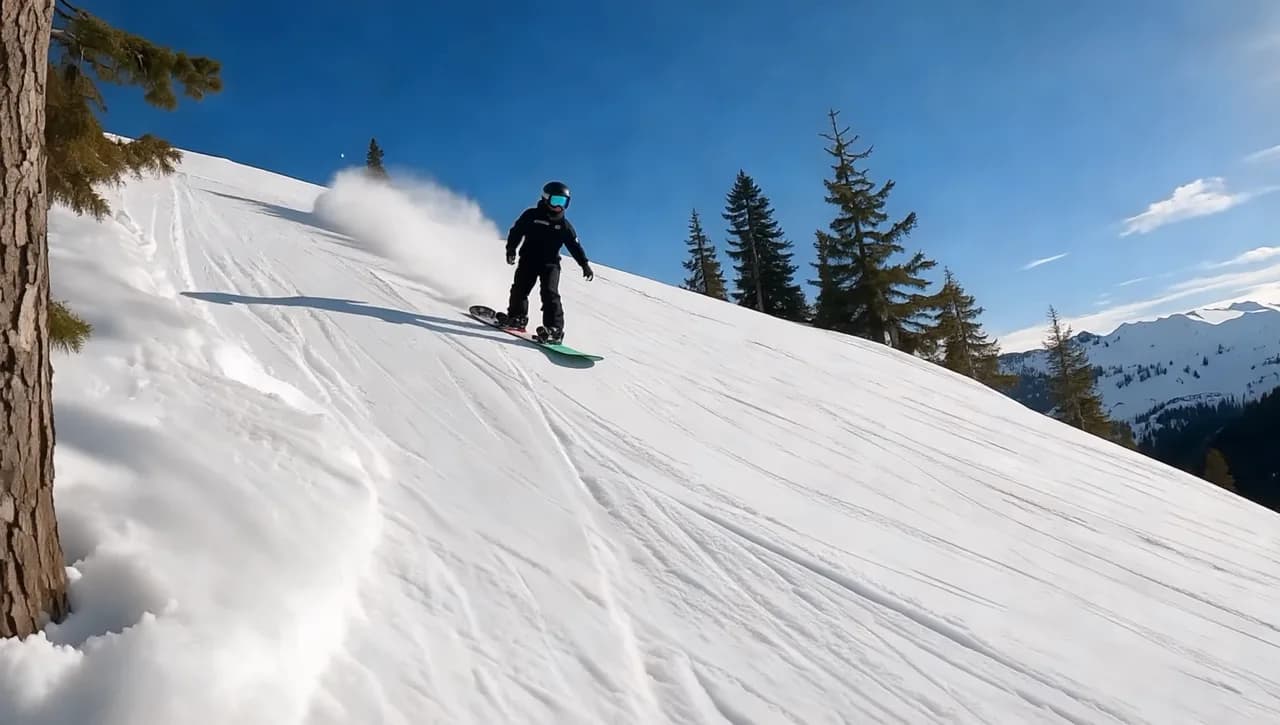
Practical short-video controls
HappyHorse 1.0 supports 720p and 1080p output, 3-15 second durations, and common aspect ratios for prompt and reference-driven clips. These controls are useful for real production planning: 9:16 for social, 16:9 for ads and demos, square formats for feed posts, and short durations for fast creative tests.
MODEL COMPARISON
HappyHorse 1.0 vs Seedance 2.0
Both models can create short AI video in FlashEdit. Use these four points to decide whether the current idea needs HappyHorse reference guidance or a broader Seedance workflow.
Choose HappyHorse 1.0 when the source image is part of the brief. It is the better fit for first-frame animation, product references, character concepts, and visual styles that need more guidance than a prompt can provide.
PRODUCTION TOOLS
Turn a generated clip into a usable asset
HappyHorse 1.0 gives you the video. FlashEdit's surrounding tools help make that clip easier to ship in an ad, post, pitch, or edit timeline.
WHO IS IT FOR
Who should try HappyHorse 1.0 first
HappyHorse 1.0 is most useful for teams turning prompts and visual references into ads, ecommerce concepts, creator clips, and early visual prototypes.
Campaign Concepts — Ad Marketers
Generate short campaign visuals from product references, mood boards, and scene prompts before committing to a full production. HappyHorse is useful when the team needs to compare several hooks, angles, or product scenes before choosing what to shoot or edit.
Short-form Video — Content Creators
Create social clips from an idea or reference image, then iterate on pacing, aspect ratio, and visual style. Use it for B-roll, intro shots, visual transitions, and quick story moments that support a longer post or video.
Pre-visualization — Filmmakers
Turn story beats into short moving shots that help communicate framing, camera movement, and scene tone. The goal is not to replace production, but to make a pitch, treatment, or storyboard easier to understand.
Product Marketing — E-commerce Teams
Use product or lifestyle references to generate quick video concepts for listings, ads, and seasonal campaigns. First-frame and reference inputs are useful when the product shape, color, or visual environment needs to remain recognizable.
PRICING
HappyHorse 1.0 pricing in credits
HappyHorse 1.0 usage is easiest to understand as resolution times duration: lower-cost 720p for testing, 1080p when the clip is closer to production.
Starter
$9.9/mo
Best for light monthly FlashEdit AI projects
- 200 AI design credits Per Month
- Up to 20 videos
- Up to 200 images
- Up to 13 songs
- Up to 20 voice tracks
- HD, Watermark-Free Downloads
- Priority support
- Faster Generation Speed
- Private Generation
Popular
PRO
$29.9/mo
Best for regular FlashEdit AI projects
- 1000 AI design credits Per Month
- Up to 100 videos
- Up to 1,000 images
- Up to 66 songs
- Up to 100 voice tracks
- HD, Watermark-Free Downloads
- Priority support
- Faster Generation Speed
- Private Generation
- Credits rollover & never expire
Ultra
$99.9/mo
Perfect for professionals and agencies
- 5000 AI design credits Per Month
- Up to 500 videos
- Up to 5,000 images
- Up to 333 songs
- Up to 500 voice tracks
- HD, Watermark-Free Downloads
- Priority support
- Faster Generation Speed
- Private Generation
- Credits rollover & never expire
FAQ
Questions about HappyHorse 1.0
Key details about using HappyHorse 1.0 inside FlashEdit.
TESTIMONIALS
Creators using HappyHorse 1.0
Feedback from teams using HappyHorse 1.0 for image-guided short video production.
MR
Maya R.
Creative StrategistHappyHorse 1.0 is useful when we already have a visual direction. The first-frame workflow makes the output easier to pitch.
NT
Noah T.
Video EditorThe multiple-reference option helps when a single image cannot explain the product, style, and environment at the same time.
SL
Sara L.
Social LeadWe use it for fast social concepts. The 720p setting is good for quick tests, and 1080p is better when the idea is approved.
LP
Leo P.
Independent CreatorI can start from a still image, add a specific camera move, and get a clip that is close enough to keep iterating.
AM
Ava M.
Brand OwnerFor product ideas, being able to guide the clip with references saves a lot of back and forth.
DS
Daniel S.
Agency FounderIt gives us a practical middle step between a static concept board and a full motion edit.
Create with HappyHorse 1.0
Start with a prompt, add an optional first-frame image or multiple references, and generate a short AI video inside FlashEdit.